 UjimaOS
UjimaOS is a Linux-based operating system for shared computer rooms: it works offline, needs no server, and is looked after with one USB stick.


Public labs, school labs, libraries, community rooms
Places where power and internet come and go, where anyone may sit down at any machine, and where nobody should need a technician to get the room working again.
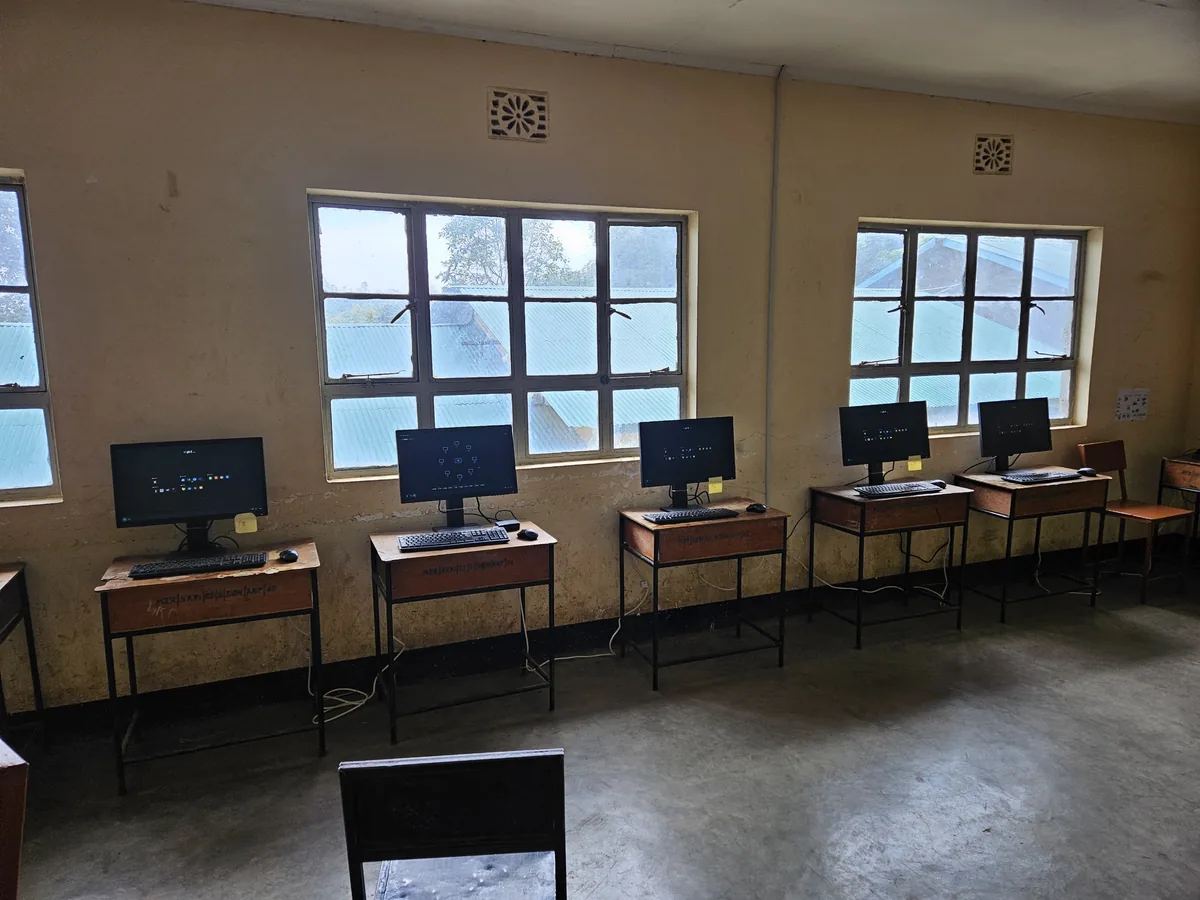
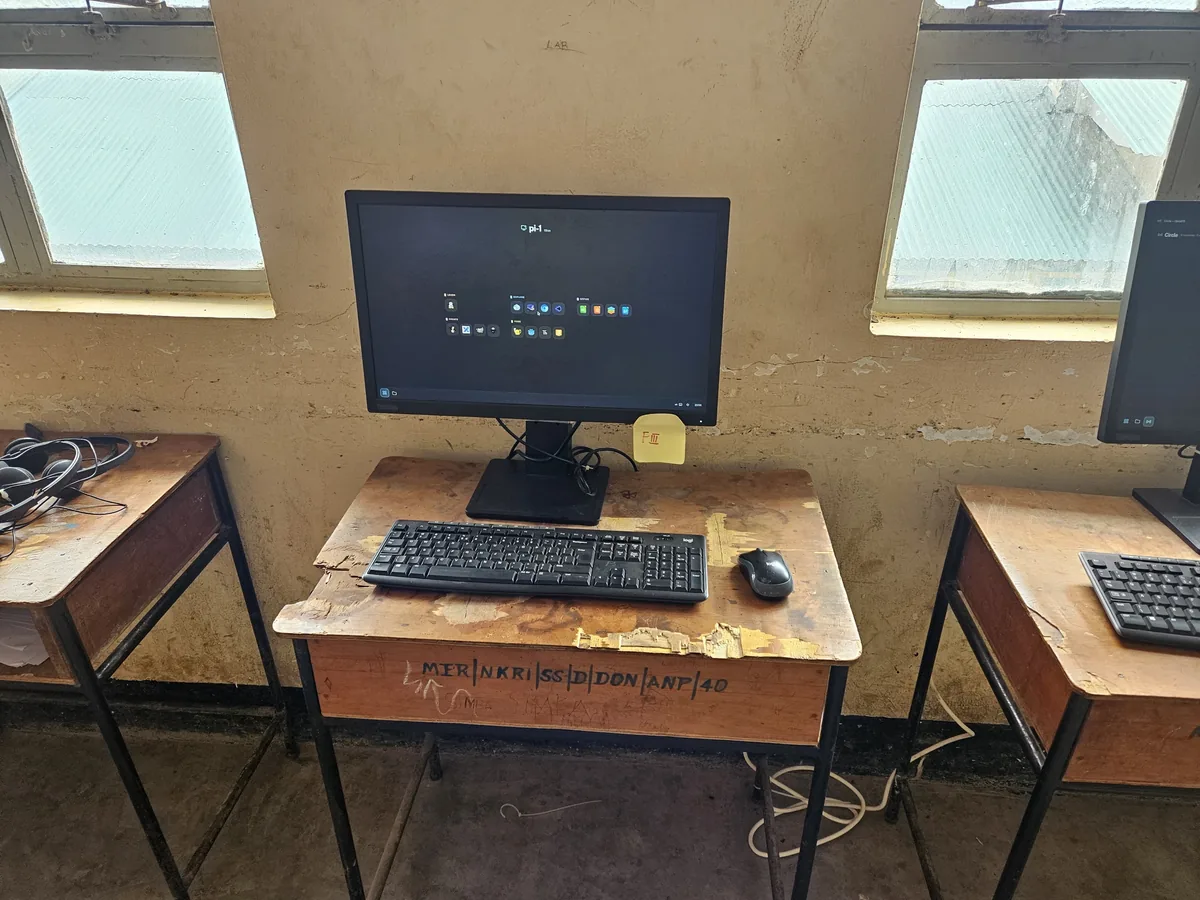
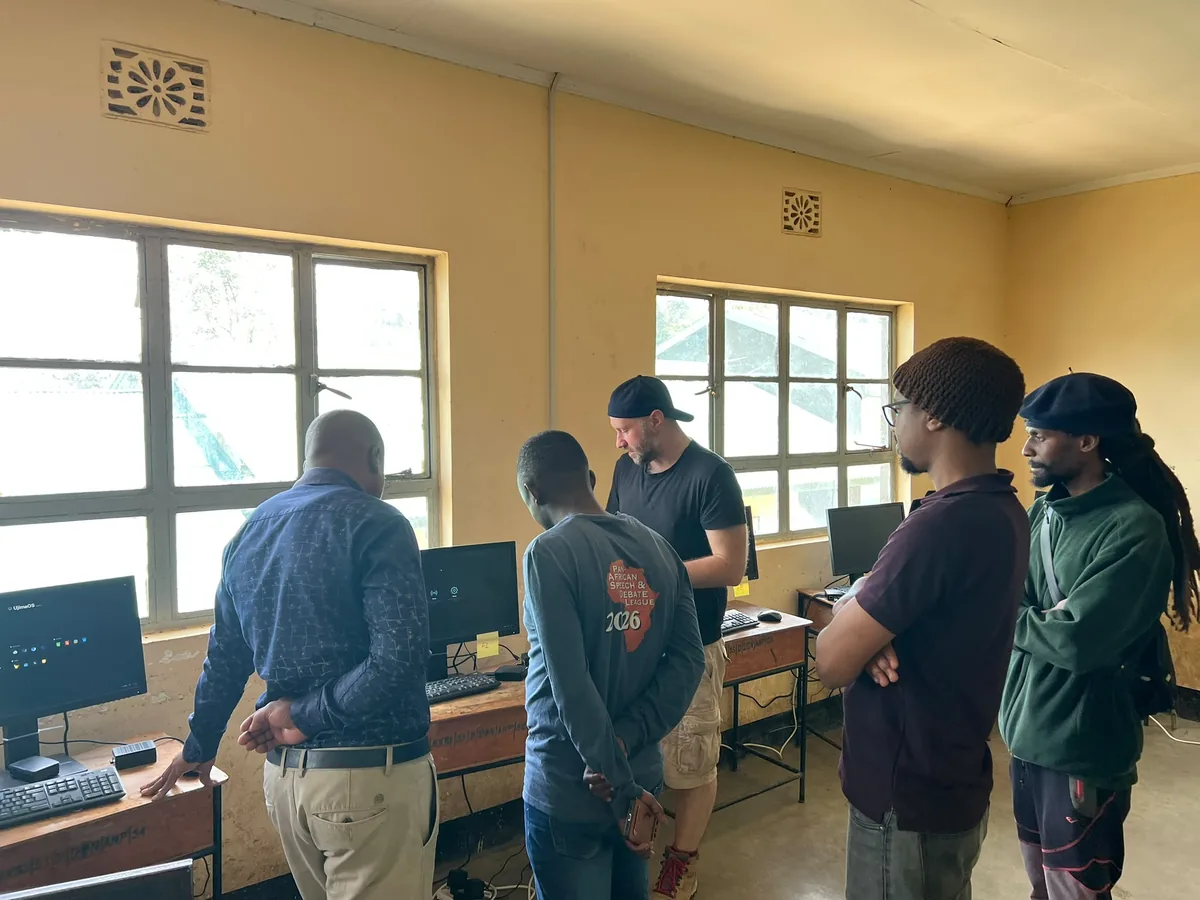
In use since September 2026 at the Kimundo Public Computer Lab, open to anyone in the village, and in the computer lab of Nkoarisambu Secondary School.
Built by the community, for the community
UjimaOS was built to solve the problems we ran into in the computer rooms we installed near Arusha, Tanzania: recovery that needed a technician, servers that failed, and internet we couldn't count on. The rooms are kept running by the people who use them, from staff and teachers to volunteers and neighbours, and what gets built next comes from what those rooms ask for.
-
 2023Before UjimaOS
Peace Matunda Primary School
Ten small computers with offline lessons and a locked-down desktop. Fixing one needed a technician and a recovery drive.
-
 2024Before UjimaOS
Nkoarisambu Secondary School
A new room of ten Raspberry Pi 5 computers, with a small local server for offline content.
-
 2026UjimaOS
Kimundo, built together
The community fitted the outlets and provided the desks and chairs, and local volunteers did the electrical work. The public lab opened as the first room on UjimaOS.
-
 2026UjimaOS
Nkoarisambu, upgraded
The Nkoarisambu lab moved from Ubuntu to UjimaOS.
All of this comes from the UjimaOS knowledge base, the project's open field record of what worked, what failed and what is still unknown.
A desktop anyone can sit down at
One home screen with every app grouped by what it is for. An app fills the screen with a single close button, and the bar keeps sound, the keyboard layout and the time within reach.
Files go where you would expect
Every machine has three places for files, each one named for what happens to it. A USB stick shows up the moment it is plugged in, ready to take home.
- Temporary is scratch space, erased at shutdown.
- This Computer stays, shared by everyone who uses the machine.
- USB sticks mount the moment they are plugged in, and are checked and repaired first when needed.
- Open and Save start in these same places, in every app.
The apps are already there
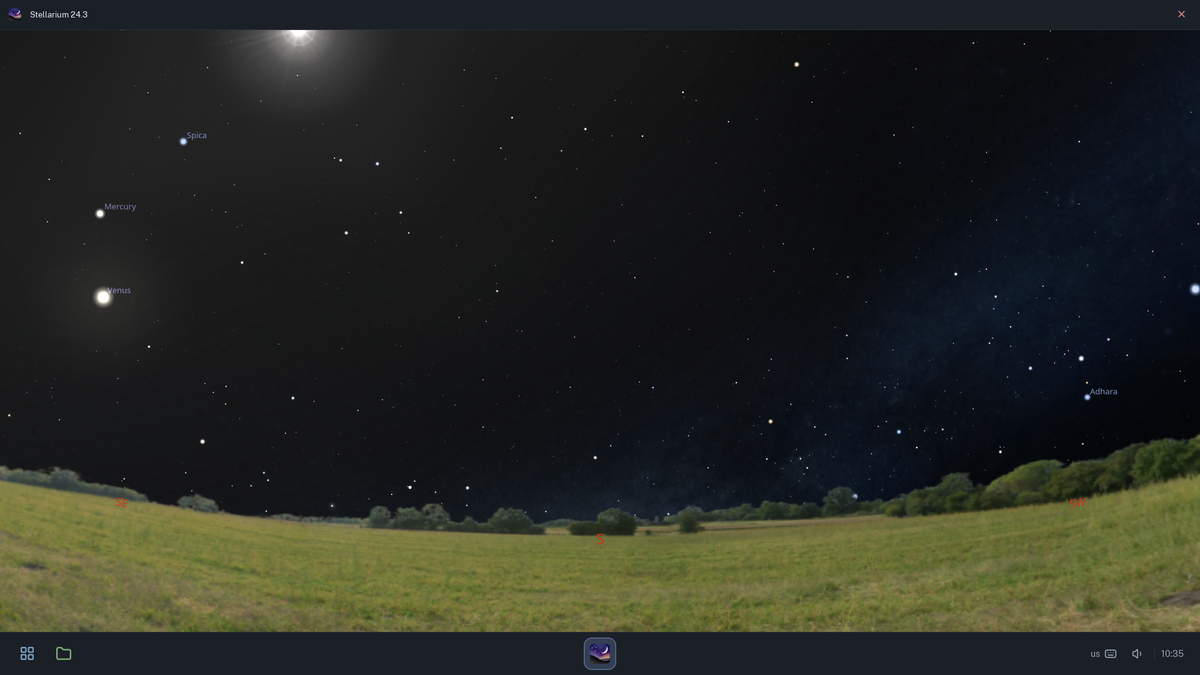
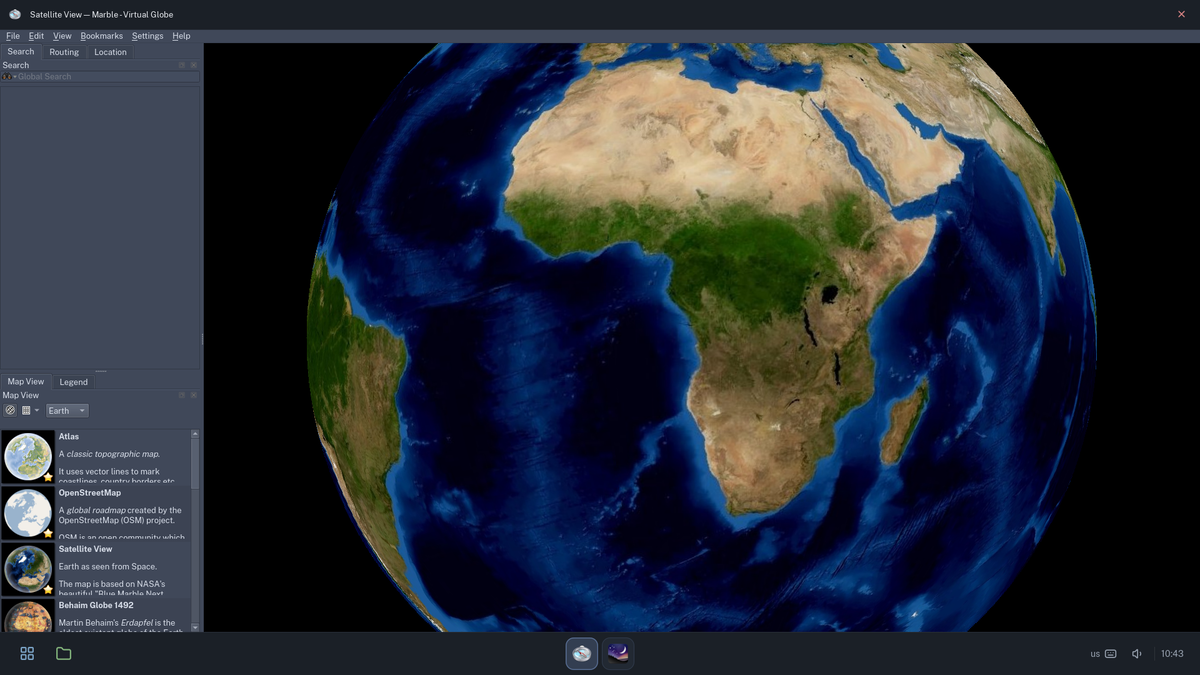
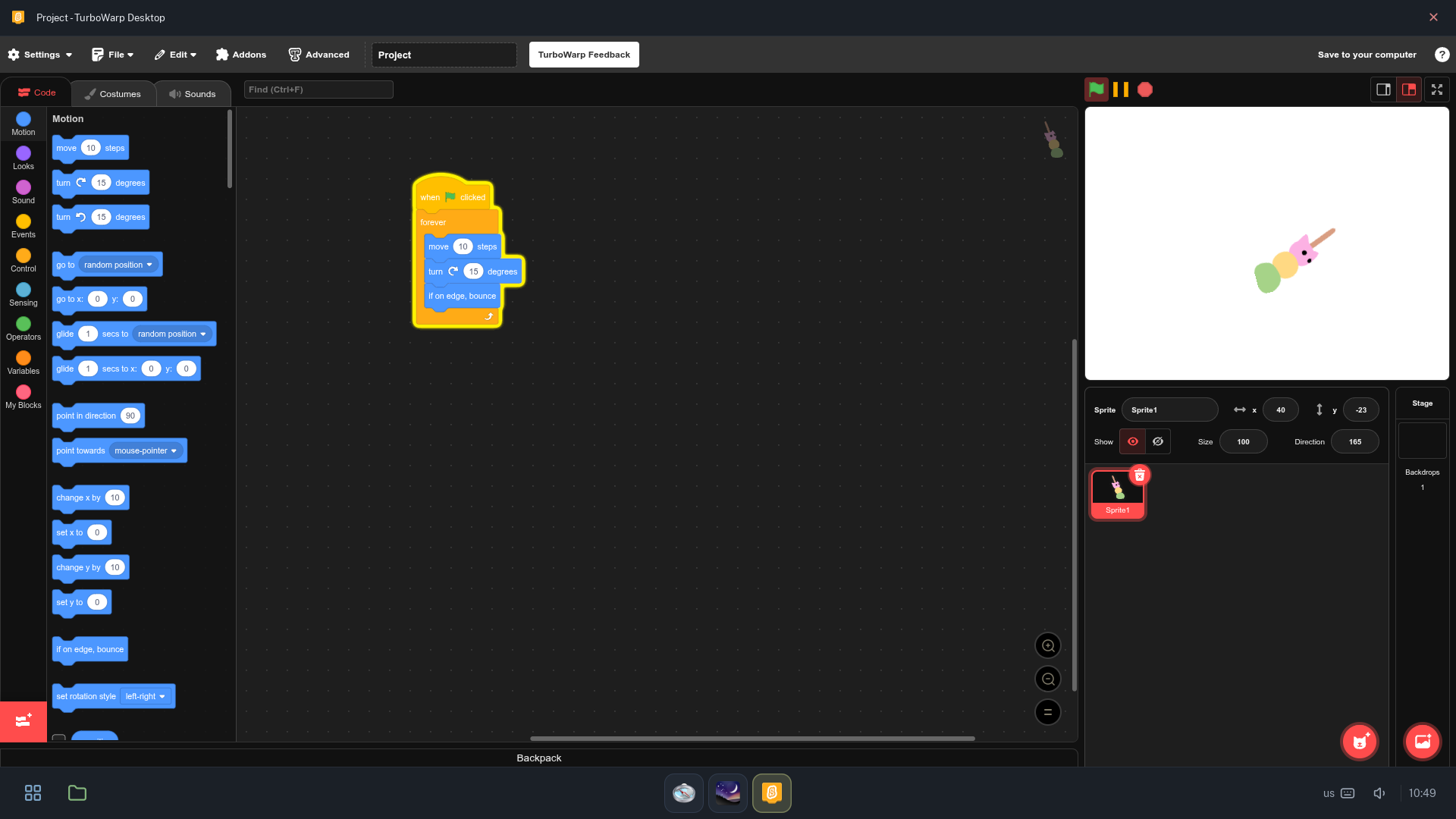
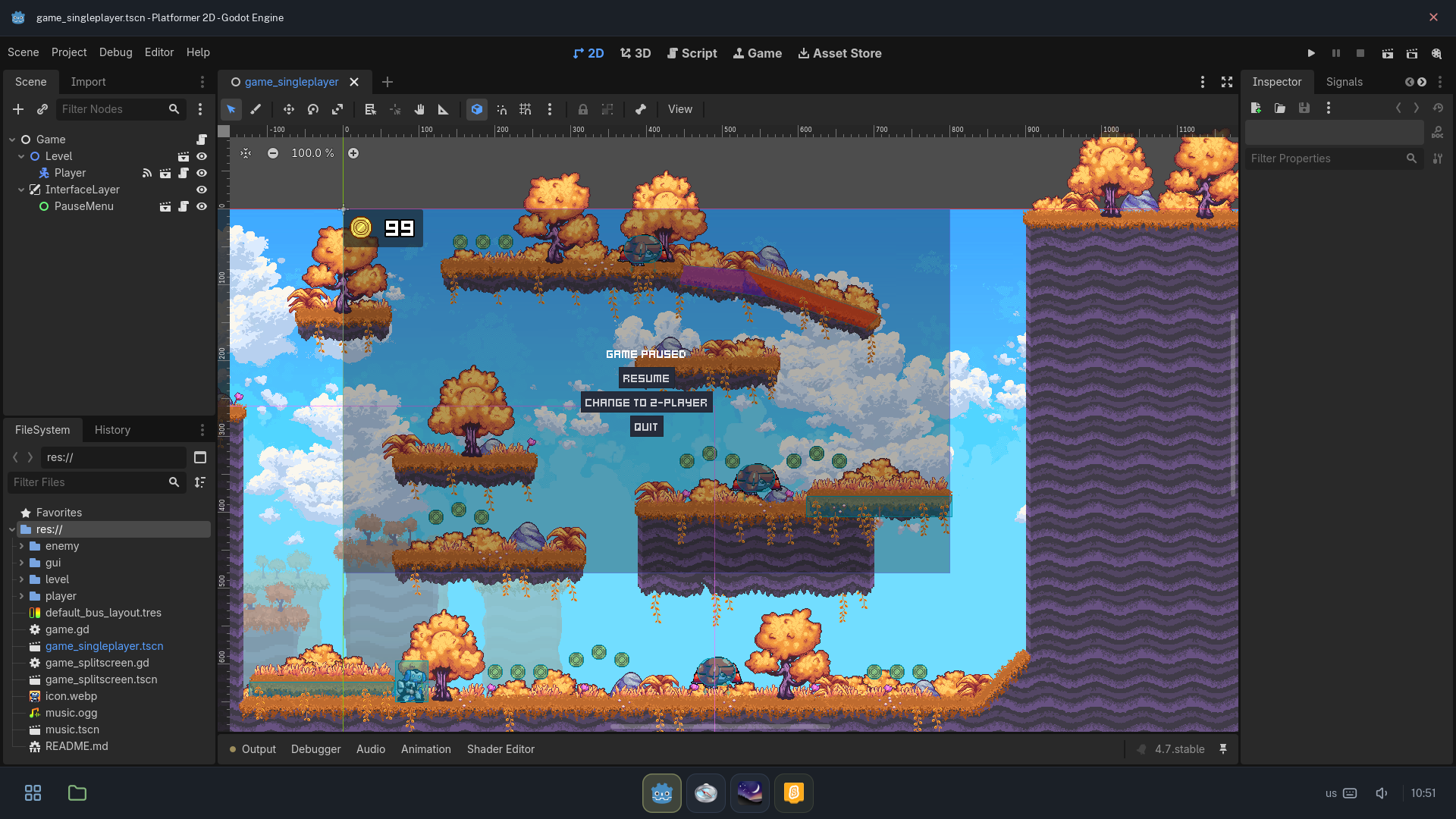
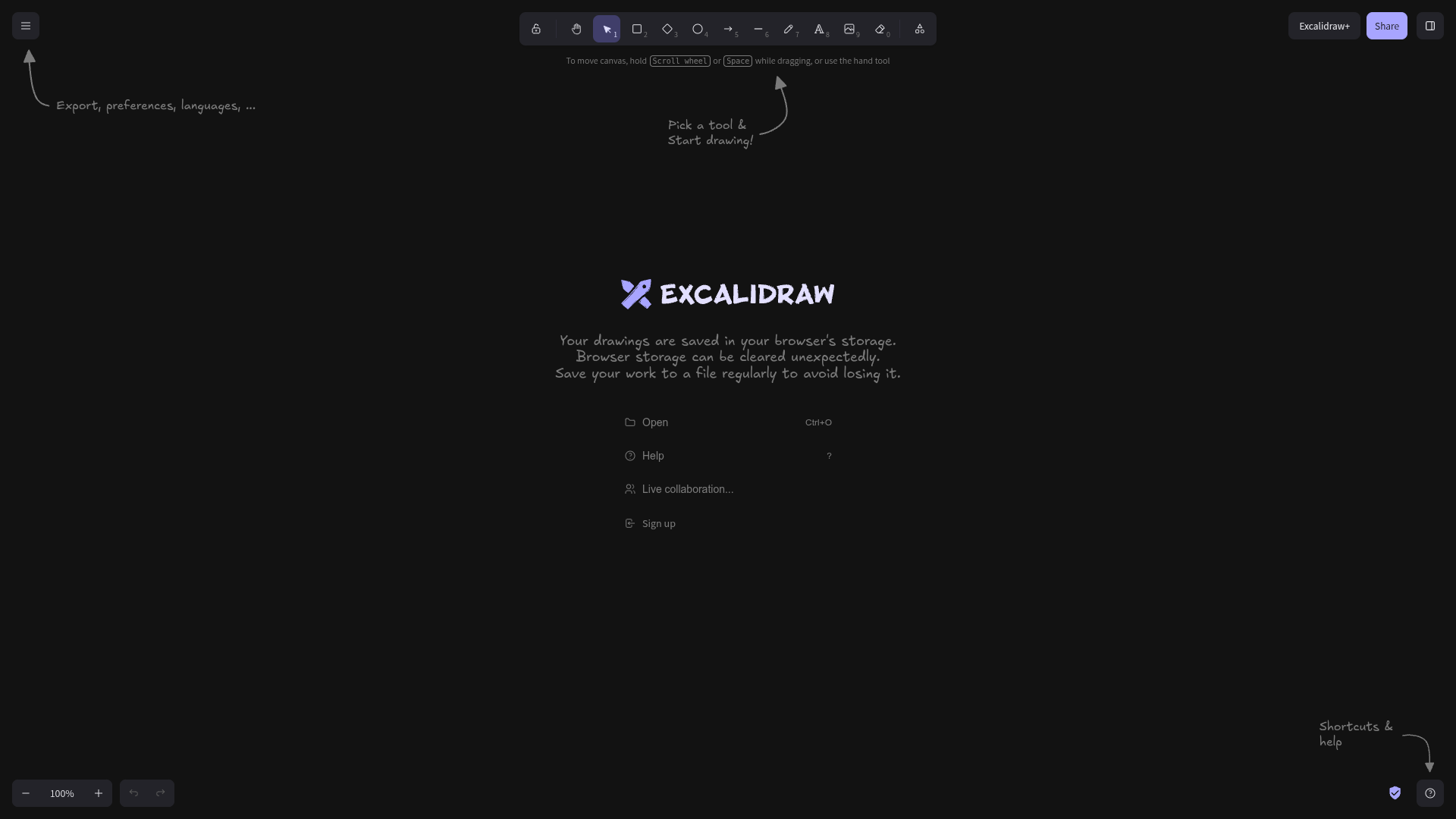
Office, drawing, programming, maps and the night sky, installed on every machine. Apart from the Web app, none of them needs the internet. Adding an app is adding one folder.
One USB stick turns a room of computers into one system
Day to day, every machine works on its own, with no admin screens and nothing to log into. Plug the room's admin stick into any one of them and that machine opens the Console, a control panel that reaches every machine sharing the room's key. Pull the stick out and it is an ordinary computer again. There is no server and no password: the stick is the key.
Plug in the admin stick
Into any computer in the room. Until then, every computer works on its own.
That computer opens the Console
It reaches every computer that shares the room's key, and each one answers.
Take the stick out
The Console closes, and it is an ordinary computer again.
What the Console can do
Three panels, each for one kind of job.
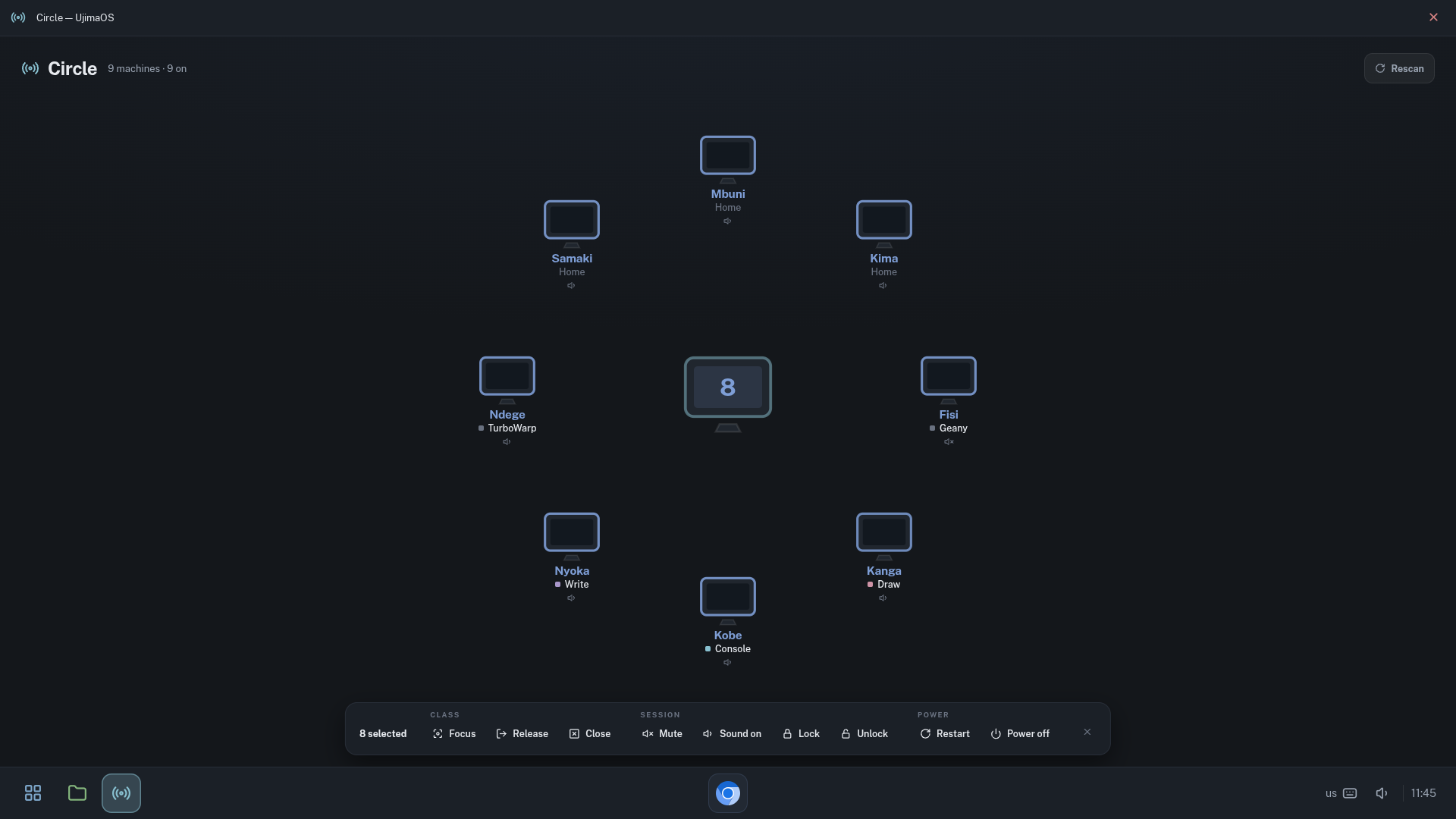
Circle: every screen at a glance
The ring shows every machine in the room, what it is running and whether it is on. Pick a few machines, or all of them, and act on them at once.
- Apps: open or close an app, or hold the room on one in focus mode.
- Session: mute or unmute, lock or unlock.
- Power: restart or power off.
- Every answer comes back to the ring: done, failed, or no reply.
Locks and focus, from the admin's seat
From the Console, an admin can lock every screen for a break, or hold the room on one app. In focus mode the bars disappear and switching apps is off until the machine is released.
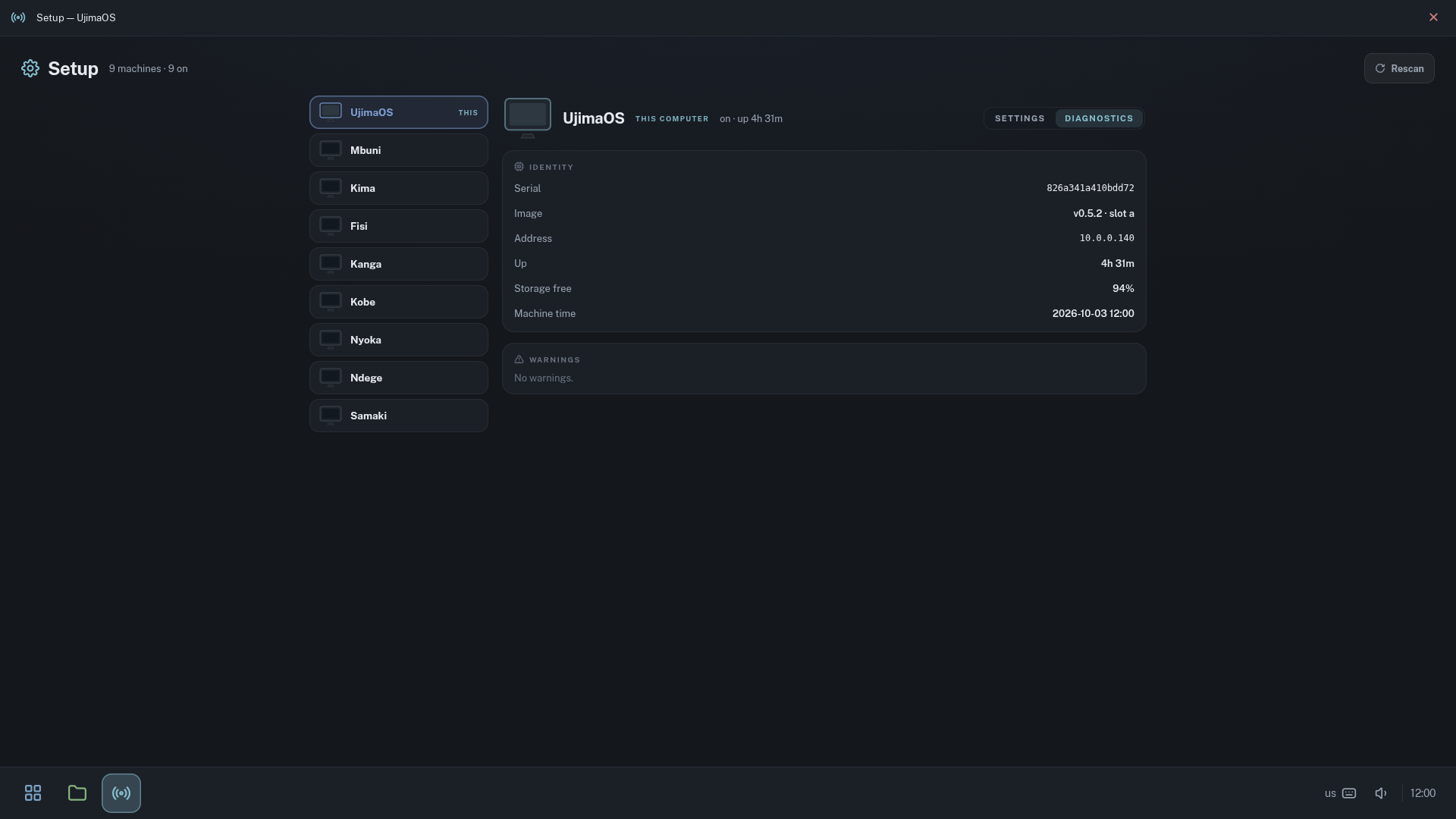
Setup: one machine, or every machine
Give a machine its name, set the clock and time zone, choose keyboard layouts and where sound goes. The clock and the keyboard layouts go to the whole room in one click, so after a power cut every clock is put right at once.
- Each row lights up as its machine answers.
- Diagnostics show each machine's version, slot, address, uptime and free space.
Updates with a way back
Every disk holds two complete systems, slot A and slot B. An update from a USB stick is written into the slot that is not in use while the computer keeps working. The computer then restarts into it once, to keep it or go back. A version that does not start is never kept.
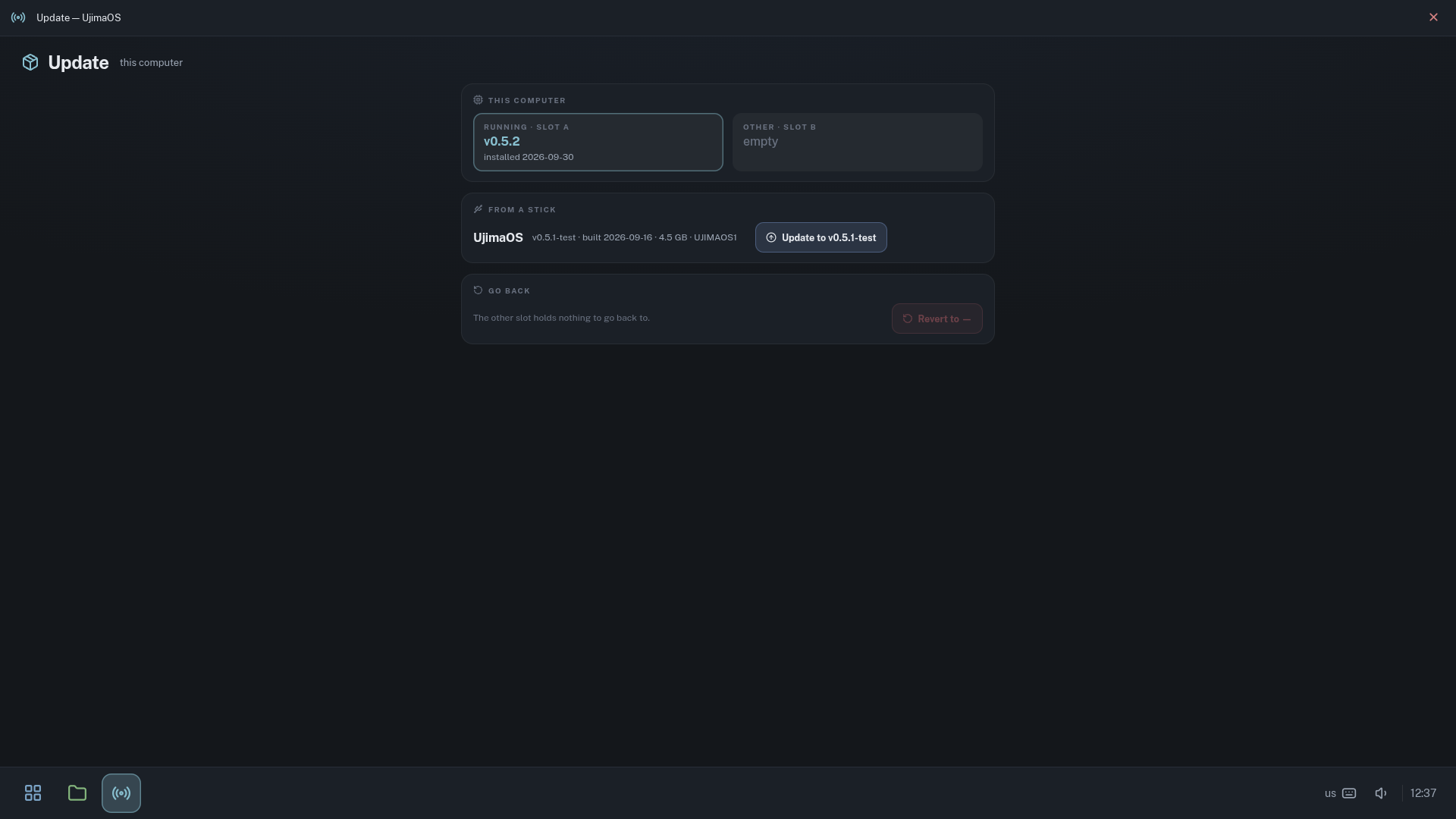
A stick offers a version
Plug in a stick that carries a release and the Update page offers it.
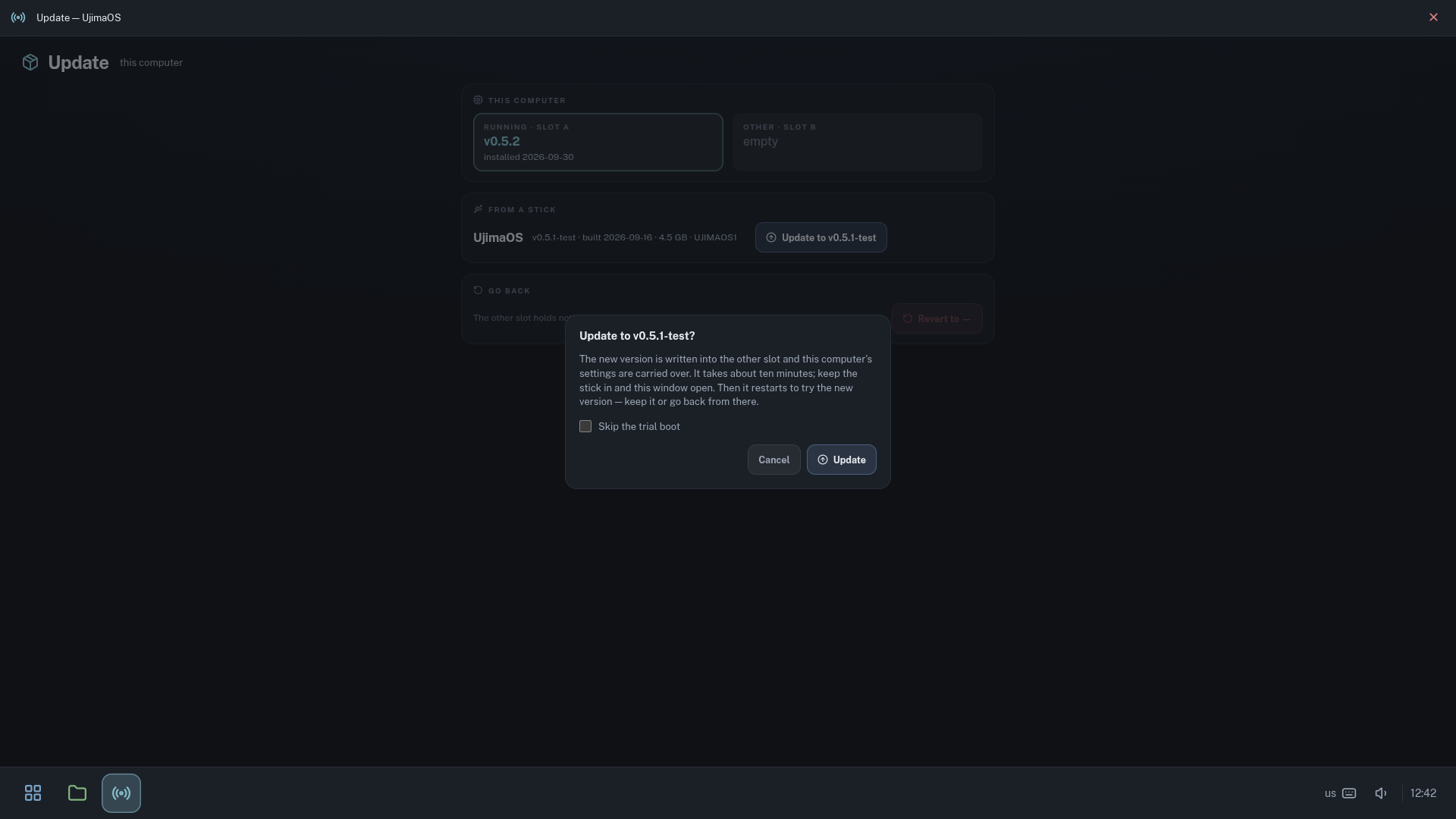
Written beside the running one
The other slot is written while the machine keeps working, and its settings are carried across.
Tried once, then kept
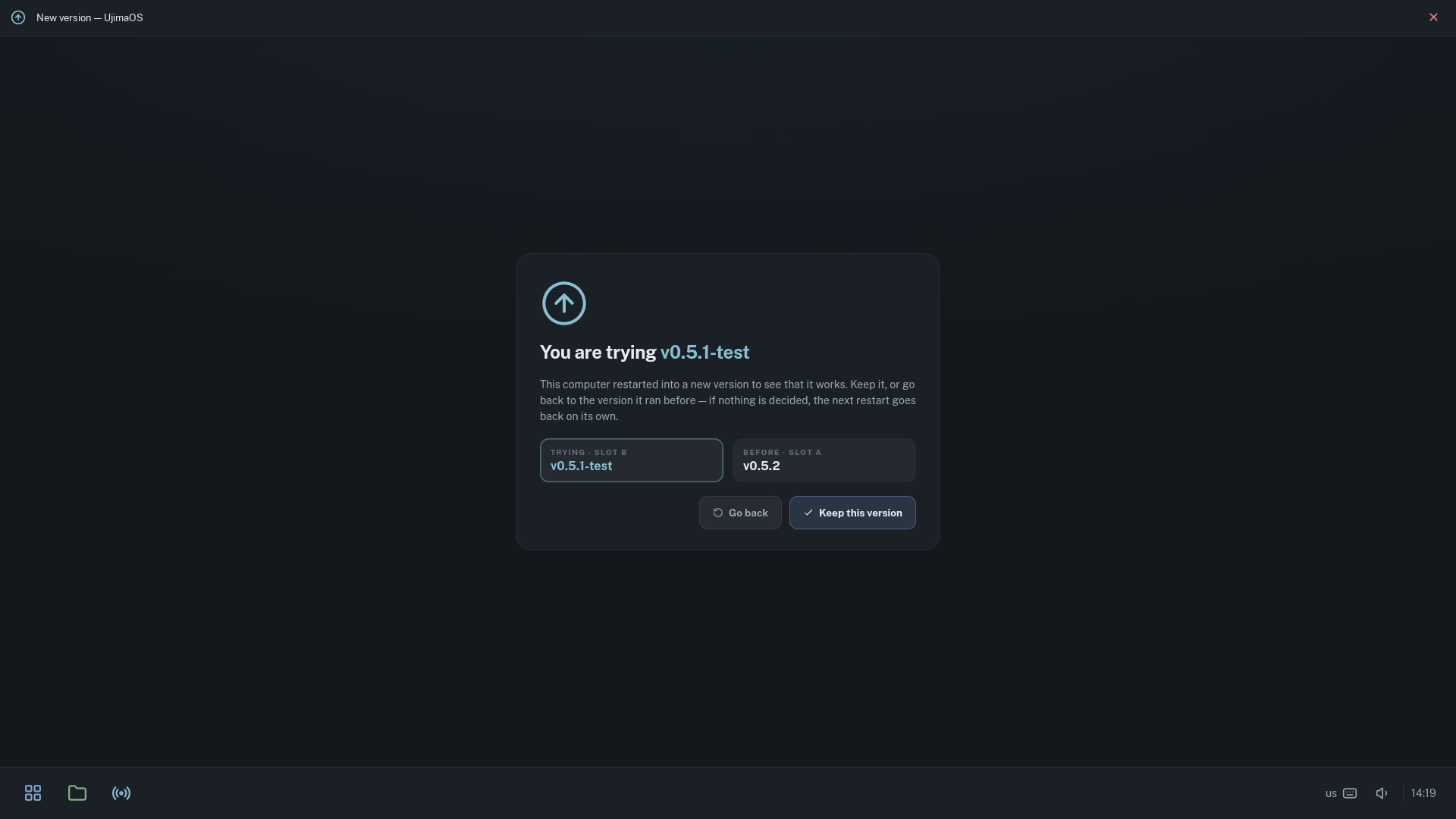
After the restart, keep the new version or go back. If nobody decides, the next restart goes back on its own.
The old version is still there
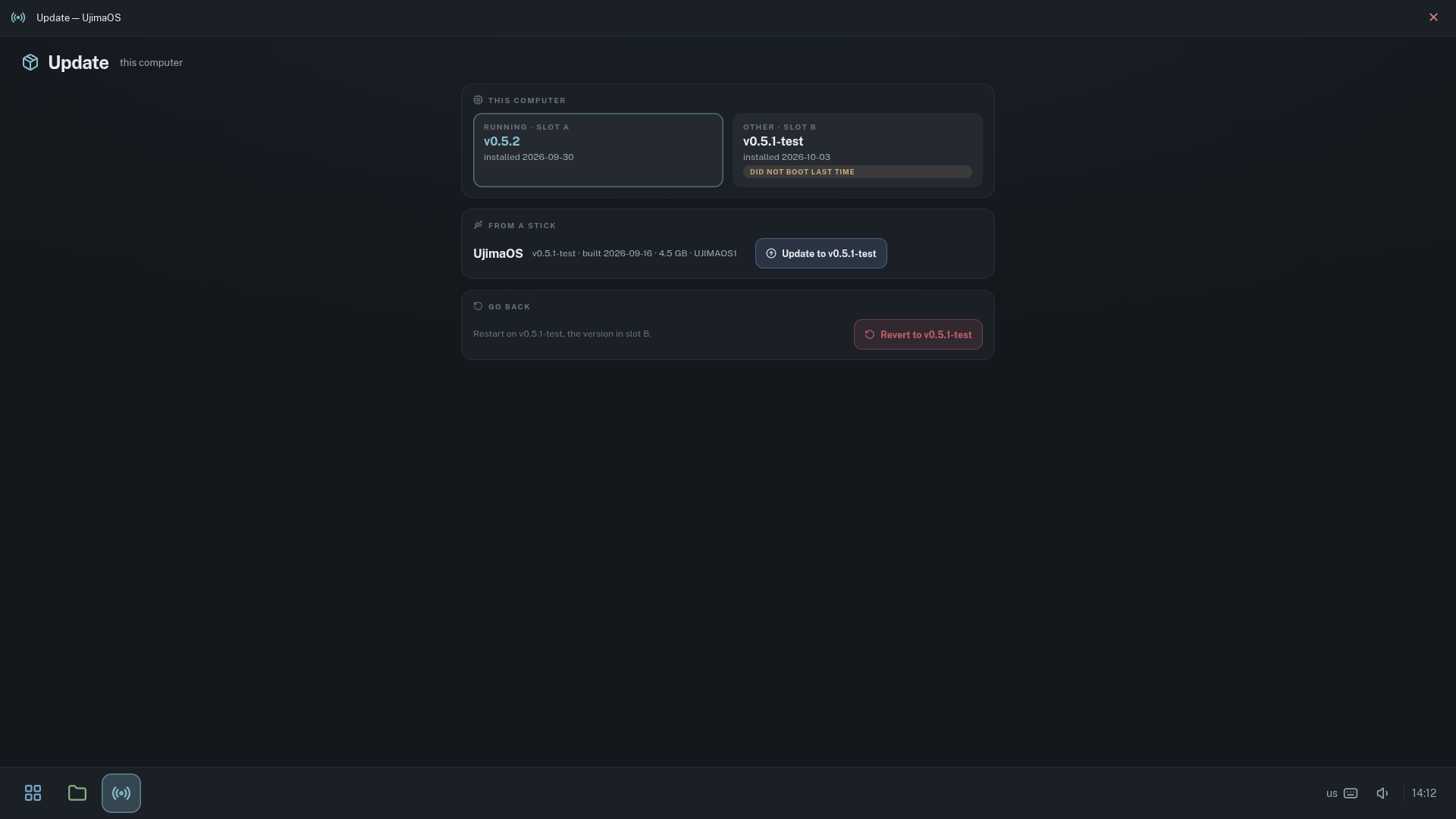
If a new version fails to come up, the firmware starts the previous one instead. The Update page says so plainly, and the version that failed stays in its slot until it is replaced.
Few moving parts
At its core is ujimad, the UjimaOS runtime: one small process, written by hand in functional Clojure, that sits on Raspberry Pi OS and exposes an HTTP API. The desktop is a thin layer on top of it, built with AI. Every machine runs exactly the same software, so there is no server to keep alive and nothing in the cloud.
ujimad at the centre
Boot, system and settings partitions for slot A and for slot B. People's files, the logs and the machine's identity are shared by both.
The system partition is mounted read-only with a throwaway layer on top, so what changes during a session is gone after a restart.
Machines take commands only when they are signed with the room's key. The key lives on the machines and on the admin stick.
Each machine announces itself on the local network and the Console sweeps the subnet as well, so a room fills in without anyone typing an address.
A setting can be held for the whole room, for one machine, for the current session, or pinned for an activity such as a presentation. The most specific layer wins, and anything pinned wears a padlock in the bar.
The bar, the home screen and Files show what the runtime streams over a local HTTP API, and send every click back the same way. The Console and other machines use the signed side of that API.
Questions people ask
Is UjimaOS ready to use?
UjimaOS is young and in active development, and it will not be considered stable until v1. Until then, expect rough edges and changes between releases. It already runs in two computer labs, but it is early software; the changelog says exactly what each release does.
Does it need the internet?
No. The apps, people's files, the Console and updates all work offline, and machines find each other on the local network. With internet access the Web app browses as usual.
Is there a server or a cloud account?
No. Every machine runs the same software. The Console runs on whichever machine holds the admin stick and talks to the others directly, so the room works the same whether one machine is on or twenty.
What hardware does it run on?
A Raspberry Pi 5 or Raspberry Pi 500, a microSD card of 32 GB or more, a screen, a keyboard and a mouse. The labs using it today run Pi 500s with 8 GB of memory and Pi 5s with 4 GB. A port to x86 computers is on the way.
How do I get UjimaOS?
An installer is planned and not out yet. Until it is, UjimaOS is built from source: on a Linux computer with the repository, one command builds the system and writes a card that is ready to boot, sudo bb build rpi disk /dev/<card> --wipe.
After that, new versions arrive on a USB stick through the Console's Update page. See the README for what the build needs.
Who can manage the machines?
Whoever holds the room's admin stick. Plugging it into any machine opens the Console; pulling it out closes it. Commands are signed with the room's key, and machines ignore anything that is not.
What happens to people's files?
There are three places, each named for what happens to it. Temporary is erased at shutdown. This Computer stays, and is shared by everyone who uses that machine. A USB stick goes home with its owner. The system itself is read-only and resets on restart, so a session can never break it.
What if an update goes wrong?
A new version is written into the slot that is not running and tried once. If it does not start, or someone chooses Go back, the computer returns to the version it ran before, with its settings intact. The Update page shows what happened.
Which apps come with it, and can I add more?
Web (Chromium), ONLYOFFICE, LibreOffice Writer, Calc and Impress, GIMP, Inkscape, Tux Paint, Excalidraw, Godot, TurboWarp, Thonny, Geany, Marble, Stellarium, XaoS and TuxTyping.
There is no screen for adding apps yet. An app is one folder, so for now you can copy one of the built-in apps, ask an LLM to help you write one, or talk to us.
Which keyboards and languages does it support?
The interface is in English. Each machine can carry several keyboard layouts, English and Swahili for example, and switching between them is one click in the bar or a Super+Space away.
Is it free?
Yes. UjimaOS is open source under the Mozilla Public License 2.0.
The people behind it
A small team of friends, mostly at home in the area: three of us live close to the public lab. We all grew up with computers and used public computer rooms ourselves.
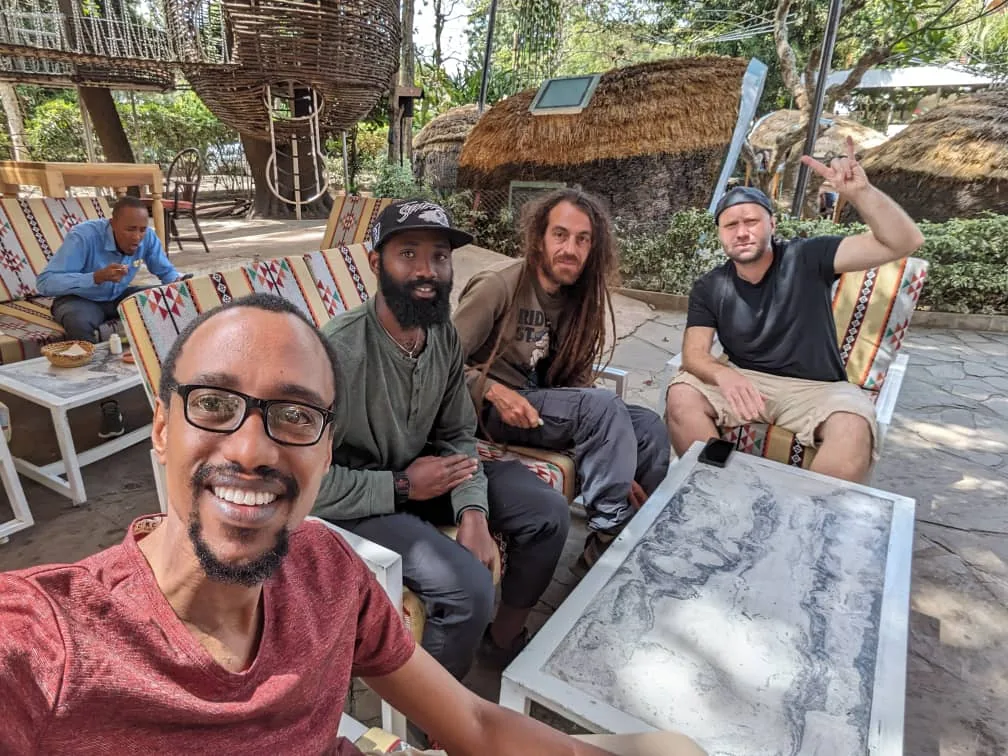

- KobiLocal tour guide, and the project's community and logistics coordinator.
- GodsonPhotographer and local guide who works on the physical side of every install. Created the name UjimaOS and its logo.
- StewartSoftware developer on UjimaOS's design, apps and support, and the bridge between technical language and local context.
- VitaliSoftware developer on UjimaOS: its architecture and product direction.
- DaniAI and automation engineer, in the field since September 2026.
Come build with us
UjimaOS is a young system. It runs two computer labs today, but it is changing quickly and will not be called stable until v1. There is plenty left to build, and plenty to learn from the rooms it runs in.
If you write code, design, look after a computer room or just like the idea, come and build it with us.